> ## Documentation Index
> Fetch the complete documentation index at: https://docs.sirius.menu/llms.txt
> Use this file to discover all available pages before exploring further.
# Elements overview
> What every element shares, and how their handles behave.
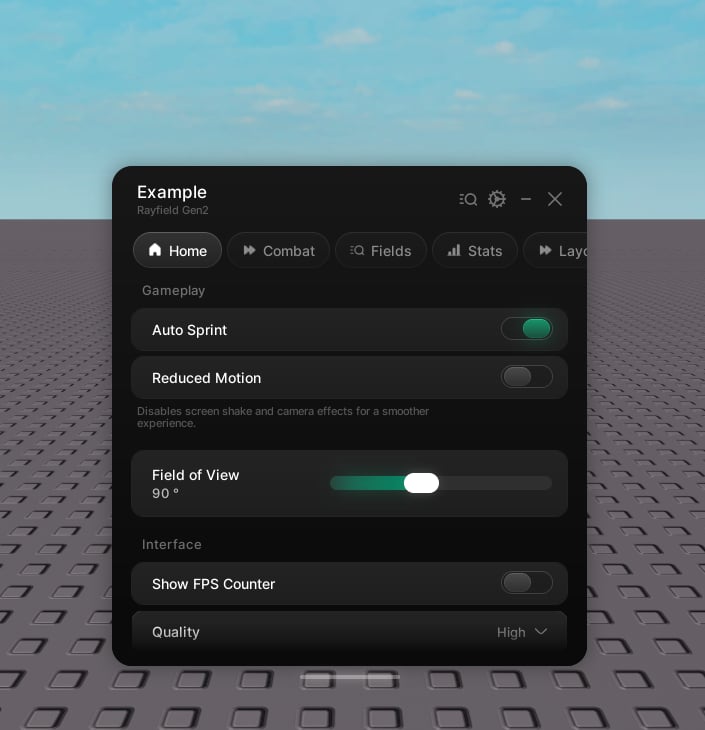
Elements are the controls inside a tab. Create one from a tab or group, and it returns a handle you can read from and drive later.
 ```lua theme={null}
local toggle = tab:CreateToggle({ name = "Auto Sprint" })
print(toggle.value) -- read
toggle:Set(true) -- write
```
## Shared properties
Every element accepts these on top of its own.
The label.
Hint text under the label.
An icon shown beside the label.
## Value handles
Every value element (toggle, slider, dropdown, input, keybind, color picker) follows the same shape.
* Read the current value from `.value`.
* Write it with `Set(value)`. This fires the callback, so the change actually takes effect.
* Pass `Set(value, true)` to skip the callback when you only want to move the UI.
```lua theme={null}
local fov = tab:CreateSlider({ name = "FOV", range = { 70, 120 }, value = 90 })
fov:Set(100) -- moves the slider and fires the callback
fov:Set(90, true) -- moves it silently
```
## Flags
Value elements save on their own under a key derived from their name. Pass an explicit `flag` when the name is localized, might be renamed, or could collide with another element. Set `forgetState = true` to skip saving entirely.
```lua theme={null}
tab:CreateToggle({ name = "Auto Sprint", flag = "AutoSprint" })
```
Read or write any flag through `window.Flags`, `window:Get`, and `window:Set`. See [Saving](/rayfield-gen2/saving).
## Reordering
Every element handle can move within its tab.
## The elements
Run a function on click.
Switch a boolean on and off.
Pick a number in a range.
Choose one option or several.
A text field.
A rebindable key.
Pick a colour and alpha.
A read-only number that rolls on change.
```lua theme={null}
local toggle = tab:CreateToggle({ name = "Auto Sprint" })
print(toggle.value) -- read
toggle:Set(true) -- write
```
## Shared properties
Every element accepts these on top of its own.
The label.
Hint text under the label.
An icon shown beside the label.
## Value handles
Every value element (toggle, slider, dropdown, input, keybind, color picker) follows the same shape.
* Read the current value from `.value`.
* Write it with `Set(value)`. This fires the callback, so the change actually takes effect.
* Pass `Set(value, true)` to skip the callback when you only want to move the UI.
```lua theme={null}
local fov = tab:CreateSlider({ name = "FOV", range = { 70, 120 }, value = 90 })
fov:Set(100) -- moves the slider and fires the callback
fov:Set(90, true) -- moves it silently
```
## Flags
Value elements save on their own under a key derived from their name. Pass an explicit `flag` when the name is localized, might be renamed, or could collide with another element. Set `forgetState = true` to skip saving entirely.
```lua theme={null}
tab:CreateToggle({ name = "Auto Sprint", flag = "AutoSprint" })
```
Read or write any flag through `window.Flags`, `window:Get`, and `window:Set`. See [Saving](/rayfield-gen2/saving).
## Reordering
Every element handle can move within its tab.
## The elements
Run a function on click.
Switch a boolean on and off.
Pick a number in a range.
Choose one option or several.
A text field.
A rebindable key.
Pick a colour and alpha.
A read-only number that rolls on change.